Uliptz WH203A User Manual: Pairing, EQ and TV Setup


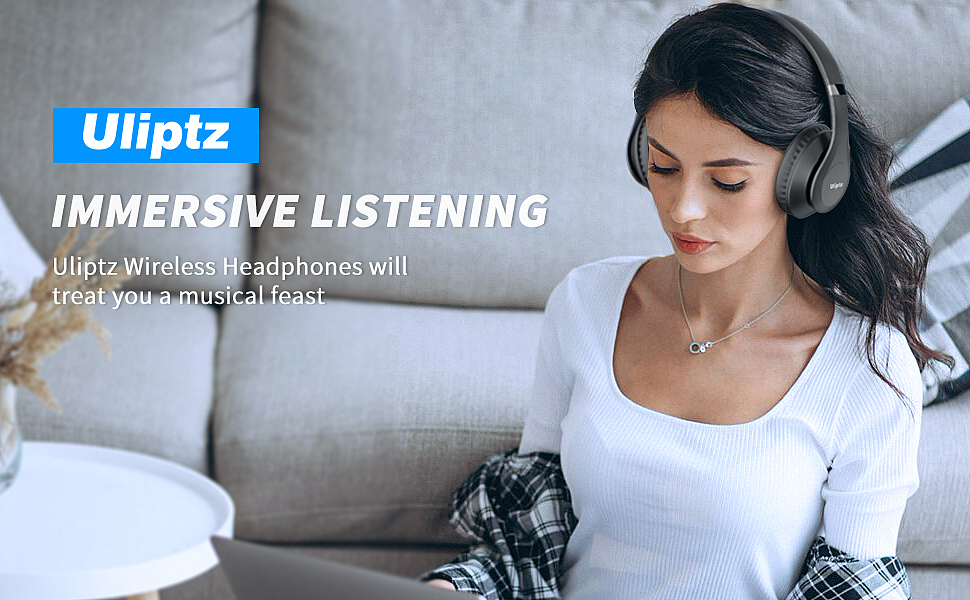
Uliptz ULWH203A Wireless Bluetooth Headphones
The box hands you a pair of Uliptz ULWH203A Wireless Bluetooth Headphones, a fold-flat frame, a detachable audio cable and a very short quick-start card. What it does not hand you is an answer to the questions that turn up in week one: how long do you hold the button, why has one earcup gone quiet, and can these headphones carry television audio? This guide collects those answers in one place.
Everything below is written for someone who already owns the headphones. No scores, no shopping advice, just button sequences, the six sound presets, and the limits worth knowing before you depend on them.
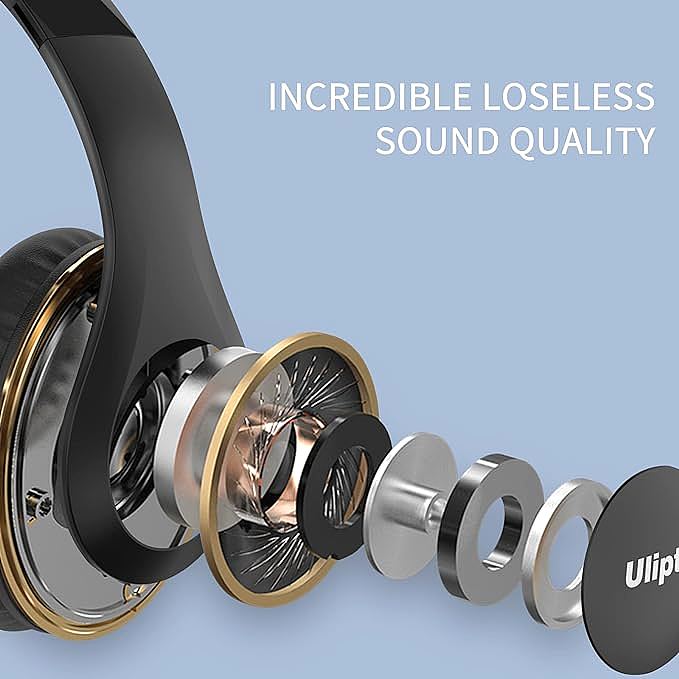
Pairing Your WH203A the Right Way
Pairing takes seconds once you know the hold times. Most "it will not connect" reports come down to a button held for the wrong length of time, so the order matters more than the speed.
- Power it on. Hold the multi-function button on the right earcup for about 2 seconds. The indicator blinks blue once to confirm the headphones are awake.
- Enter pairing mode. Keep holding the same button for roughly 3 more seconds. The light changes to alternating blue and red, which is the signal that the headphones are discoverable.
- Pick it from your device. Open Bluetooth settings on the phone, tablet or laptop and select the entry named WH203A.
- Confirm the link. A steady blue light means the connection is live.
If the name never appears, hold the button a little longer rather than tapping it. Headphones that were recently connected somewhere else sometimes need a longer press before they will advertise themselves again.
What the LED Is Telling You
The single indicator lamp carries most of the status information the headphones give you, and once you learn the three states it replaces a lot of guessing.
- Alternating blue and red means the headphones are in pairing mode and visible to nearby devices.
- Solid blue means a connection is established and audio should be flowing.
- Nothing at all usually means the battery is flat. Charge first, then repeat the pairing sequence.
When Pairing Refuses to Work
A stale pairing record on the phone or laptop is the most common culprit, and the fix is a clean slate rather than a factory reset. Turn the headphones off, delete the WH203A entry from your device's Bluetooth list, then pair from scratch. Wiping the old record takes under a minute and clears the mismatch that keeps the headphones hidden.
If the device still refuses to see them, check the radio rather than the headphones. Windows and macOS both ship a Bluetooth troubleshooter that scans for common faults and applies fixes on its own. When that comes back empty, look at the driver: open the device manager, find the Bluetooth radio and reinstall or update it, then reboot before trying again. Older Uliptz models also allow you to clear the paired-device memory with a long press of the multi-function button together with the volume-down key, which is worth trying when a second phone keeps grabbing the connection.
The "Connect Two" Feature, Explained Honestly
Uliptz markets this as Smart One Connect Two, and it is genuine Bluetooth multipoint: the headphones hold simultaneous connections to two source devices, such as a laptop and a phone, rather than forgetting one to remember the other.
What multipoint does not do is mix two audio streams together. A headset keeps one device designated as the media player and uses the second for notifications and calls, and it automatically prioritizes whichever device is receiving an incoming call. So the practical result is a switch, not a blend. Music from the laptop pauses when a call arrives on the phone, and resumes when the call ends.
Setting it up takes two passes:
- Pair the headphones with the first device using the steps above.
- Turn off Bluetooth on that device, which drops the connection and sends the headphones back into pairing mode.
- Pair with the second device while the first is still off.
- Switch Bluetooth back on for the first device. It reconnects on its own, and both are now held.
A shortcut exists if you would rather not toggle anything: with the headphones powered on, long-press the multi-function button to re-enter pairing mode, then select WH203A from the second device's Bluetooth list.
Six EQ Modes and When to Use Each
A dedicated EQ button sits on the left earcup, and a voice announces each preset as you cycle through it. There are six in total: BassUp, Rock, Pop, Jazz, Classic and Vocal. Knowing which one to reach for saves a lot of trial and error.
- BassUp pushes the low end. It suits hip-hop, electronic music and action films where you want the kick drum to land.
- Rock lifts both the lows and the highs, which gives electric guitars and drums more bite.
- Pop leans on the midrange so a lead vocal sits in front of the backing track.
- Jazz keeps the middle open and the top end gentle, which suits acoustic instruments and small ensembles.
- Classic aims for a flatter, more neutral balance for orchestral material.
- Vocal narrows the focus onto speech, which is the setting to use for podcasts, audiobooks and long calls.
Two details are worth knowing. The preset you choose is not stored, so the headphones return to their default the next time you power them on. And the presets apply over Bluetooth only: connect the 3.5 mm cable and the EQ button stops changing anything, because the wired path bypasses the processing entirely.
Getting TV Audio Into the WH203A
Television is where these headphones earn their keep, and the route depends on what your set offers.
If the TV has Bluetooth, pair the headphones to it exactly as you would to a phone. Keep in mind that some sets only transmit to one device at a time, so the headphones may drop from your phone while they are connected to the television.
If the TV has a headphone jack, plug in the detachable 3.5 mm cable. This is the most reliable option, and it works with the headphones powered off entirely: the cable carries both the signal and enough power to drive the 40mm drivers, so a flat battery is not a problem during a long film.
If the TV has neither, you need one more piece. A Bluetooth transmitter that plugs into the TV's optical or HDMI ARC output turns the set into a Bluetooth source, and the headphones pair to the transmitter. On older sets with only RCA outputs, an RCA-to-3.5 mm adapter into the same transmitter does the job. Streaming boxes and game consoles that already support Bluetooth are a shortcut here, because the headphones can pair straight to the box instead of the panel.
Fixing One Ear, a Dead Mic and Lost Pairings
Only one earcup plays. Start by checking the balance and mono settings on the source device, because a lopsided balance slider mimics a hardware fault perfectly. Next, confirm the preset and volume are not at an extreme. If the problem persists, clear the paired-device memory and pair again, and give the headphones a full charge, since a weak cell can starve one channel before the other.
The microphone stops working. This is usually not a fault. The built-in microphone operates in Bluetooth mode only. The moment you plug in the 3.5 mm cable the internal mic is disabled and your laptop or phone falls back to its own microphone, so the person on the other end is hearing that device instead. For calls, stay wireless.
Volume feels low. The drivers are rated at 32 Ohm with a 122 dB sensitivity, which is easy to drive, so a quiet result usually traces back to the source. Check the phone's own volume, confirm no absolute-volume limit is active, and switch off any battery-saving audio mode.
Wired Mode, Battery and Care
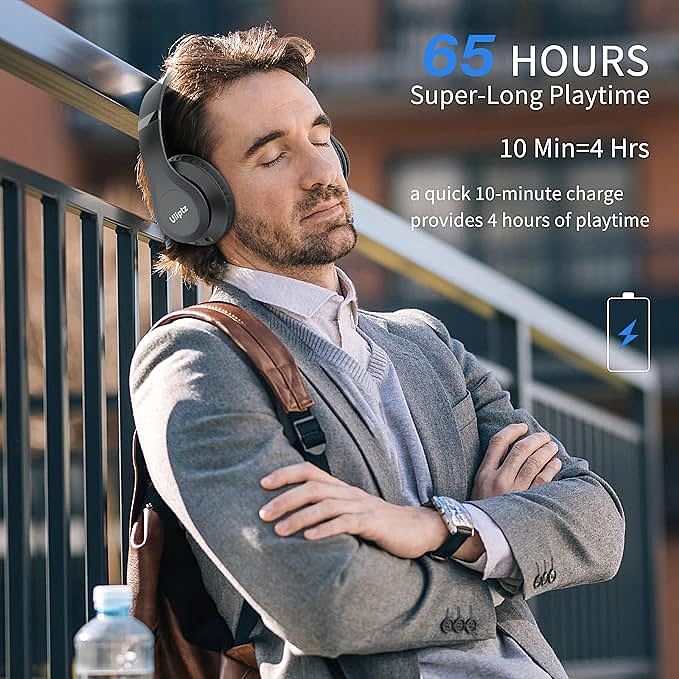
A full charge is rated at up to 65 hours of playback, which is roughly a week of commuting and desk work between charges. When the cell does run down, a 10-minute charge returns about 4 hours of listening, which is enough to finish a commute. The brand's own site quotes a more conservative 2 hours for the same 10 minutes, so treat 2 to 4 hours as the honest range. Charging runs over USB-C.
The detachable cable is more useful than it looks. It lets the headphones run with no battery at all, it connects to in-flight entertainment systems, and it sidesteps wireless compression when you want the cleanest signal the drivers can produce.
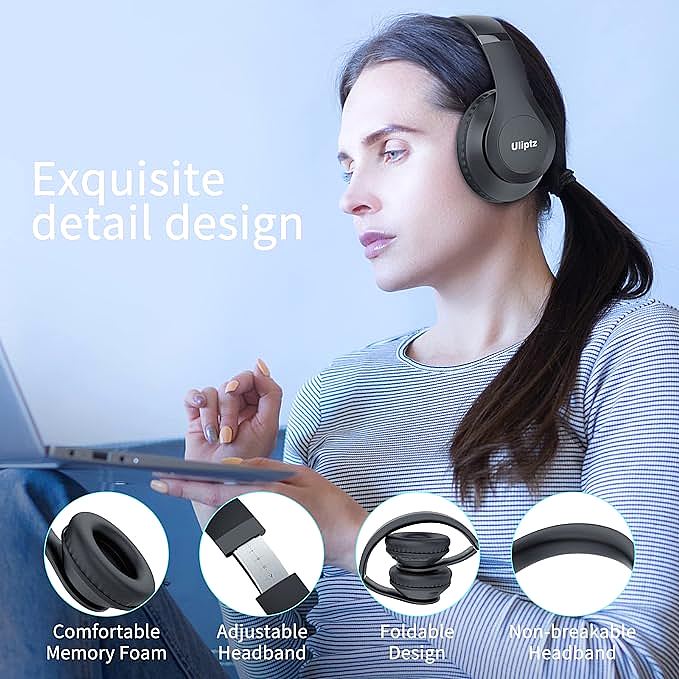
Day-to-day care is simple. The earcups use memory foam and filter out more than 50 percent of ambient noise passively, which is why they feel quiet on a bus without any electronics involved. Wipe the foam and the headband with a soft dry cloth, fold the frame flat for storage, and keep them out of the rain. There is no published water-resistance rating, so sweat from a light workout is fine and a downpour is not.
What These Headphones Deliberately Do Not Have
Knowing the boundaries saves frustration later, because each one has a workaround that stays inside what the hardware can actually do.
- No active noise cancellation. The 40mm drivers sit in memory foam cups that block sound passively, but there is no microphone-driven ANC circuit. On a plane you will still hear the engines.
- No published water-resistance rating. The frame tolerates sweat and a light drizzle, but it is not built for immersion.
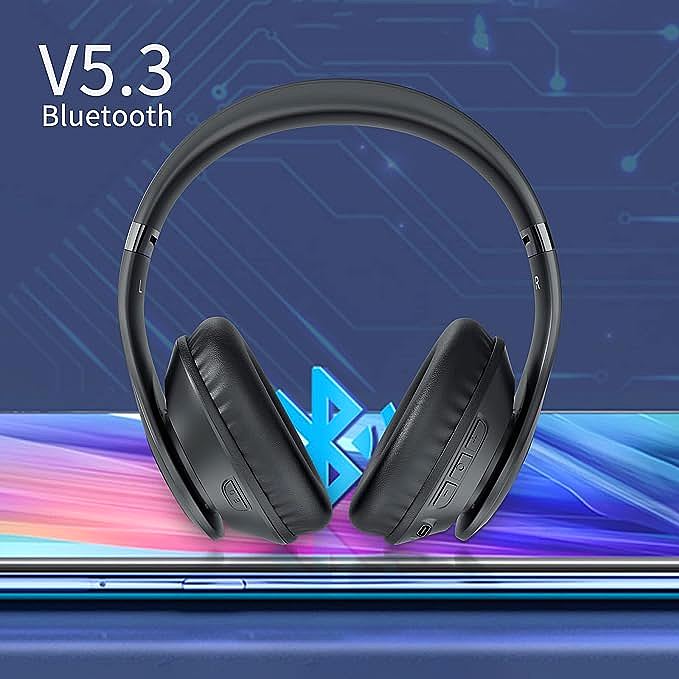
- No aptX or LDAC. The wireless link is standard Bluetooth 5.3, with a range of roughly 10 metres. If you want a lossless path, use the cable.
- A microphone that only works wirelessly. Wired listening disables it by design.
None of these are defects at this price. They are the trade-offs that keep the headphones light at 180 grams and comfortable enough to wear through a full working day. Understand them, and the rest of the feature set does exactly what the manual promises.
Uliptz ULWH203A Wireless Bluetooth Headphones
Related Essays
Avantree Ensemble Wireless Headphones: Enjoy Lag-Free TV Audio

Battery Volume vs. Miniaturization: The Physics Behind Wireless Headphone Runtime

LIUHE HX 801 Neckband Headphones: Battery and IPX4 Fit

How Bluetooth 5.3 Makes Active Noise Cancellation Better

How Wireless Headphones Achieve 70 Hours of Battery Life: Engineering Behind the Endurance

SUMEE D-422: The $20 Over-Ear That Beats Its Price Tag

Color-Changing Cat Ear Headphones: Light, Sound, and the Streamer Culture

DOQAUS LIFE 4: The Controls Your Manual Never Explains

Bluetooth Headphone Setup: LED Codes, EQ Modes, TV Audio

