COMEXION BH-M100 Bluetooth Headset: Pairing and Setup


COMEXION BH-M100 Trucker Wireless Headset
Wireless headsets solve one problem and create three. The cable disappears, and in its place you inherit a pairing ritual nobody explained, a mute button that behaves differently depending on which app is open, and a battery that drains at the worst possible moment. Most of that frustration traces back to a single design decision inside Bluetooth: audio work is split across separate profiles that do not coordinate with each other.
This walkthrough covers the specific failure points reported by owners of the COMEXION BH-M100 Trucker Wireless Headset, a single-ear design listed under ASIN B08DJ34QQ2. The fixes apply to almost any mono Bluetooth headset, because the underlying rules come from the Bluetooth specification rather than from one manufacturer.
Why a Powered-On Headset Still Refuses to Appear
Pressing the power button feels like it should make the headset visible. It does not. A powered-on headset immediately tries to reconnect to the last device it remembers, which means a brand new unit is waiting for a partner that has never introduced itself.
Pairing mode is a separate state, and reaching it takes a deliberate hold. Start with the headset switched off, press and hold the multi-function button, and keep holding after the voice prompt announces power on. Around five to seven seconds in, the indicator begins alternating red and blue. Only at that point does the COMEXION Bluetooth headset appear in your phone's list as M100 and the printed manual repeats the same hold.
Two habits cause most failures here. The first is releasing the button as soon as the power-on chime plays. The second is searching from the phone before the light starts flashing, then concluding the headset is faulty when nothing shows up. Give the headset ten seconds in pairing mode before you open the Bluetooth menu.
When a headset refuses to pair at all, the phone is usually the obstacle rather than the headset. An old entry for M100 can sit in the Bluetooth list and block a fresh handshake. Deleting that saved entry, switching the phone's Bluetooth off and on, then repeating the hold clears the case more often than a factory reset of the headset does.
Distance matters more than people expect. Bluetooth 5.0 on this headset reaches roughly 33 ft in open air, and a phone left in another room sits well outside that. Keep the two devices within a few feet for the first connection, then test the range once the link is established.
What the Indicator Light Is Telling You
Colors on this headset are not decorative. Alternating red and blue means the headset is advertising and ready to be discovered. Once a link is established the light settles into a steady blue that blinks roughly every ten seconds, which signals an active connection rather than an idle one. Plug the charging cable in and the light turns red, then holds solid blue when the cell is full.
That steady blue is worth remembering. If a headset appears connected but no audio plays, check whether the light is still cycling on the ten second interval. A light that never settles usually means the link dropped and the headset is searching again.
Some owners mistake the charging indicator for a connection indicator, then wait for a color that will never appear while the headset sits idle. Charging red and connection blue are separate signals from the same lamp.
The Mute Button That Works on a Call but Not in a Meeting App
Owners report the same surprise. The large mute button silences a phone call perfectly, then does nothing at all during a Zoom or Teams session. The button is not broken.
Two different systems own the audio path depending on where the call lives. A cellular call runs through the Hands-Free Profile, a two-way link the headset itself controls, so a hardware press travels as a command and the microphone cuts. A desktop meeting app builds its own audio graph on the computer and never receives that command. The physical press simply goes nowhere.
Pressing the microphone icon inside the meeting software is the reliable fix. The alternative is the dongle-equipped version of this headset, which presents to the computer as a USB audio device and translates the button into something the software understands. Owners who work mainly from a desk tend to prefer that route.
Running Two Devices at Once Without Losing Audio
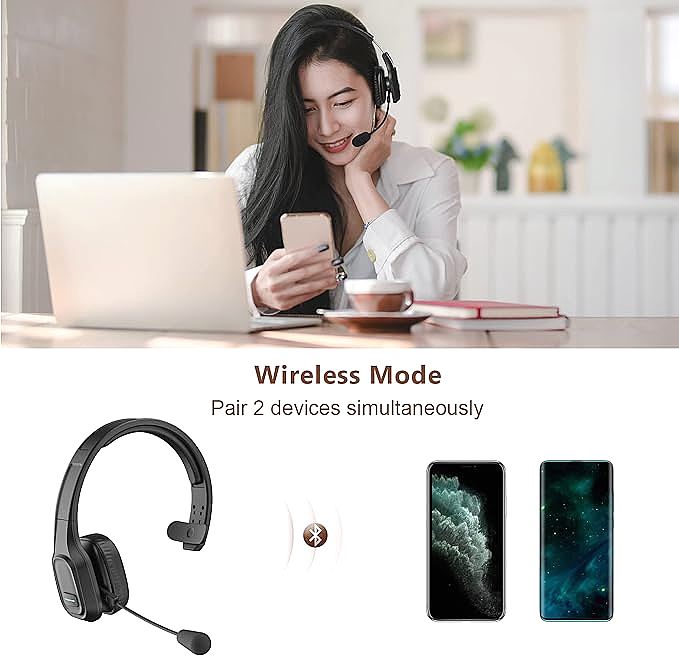
Connecting a laptop and a phone to the same headset sounds convenient, and it mostly is, provided the pairing order is respected. Connect the first device, then switch that device's Bluetooth off so the headset drops back into pairing mode. Pair the second device while the first is dark. Switch the first device's Bluetooth back on, and it reconnects on its own.
Audio does not flow from both sources at the same time. Multipoint keeps two links alive and routes a call to whichever device is ringing, but most headsets designate one device as the media player and treat the other as a source of calls and notifications. That is why music from a laptop can stall while a phone stays connected. The headset is holding the voice link open in case a call arrives, and the media stream waits.
Call priority is the part that catches people out. A ringing phone takes the link immediately, even mid-song, because the voice channel outranks the music channel in the headset's own logic. That behaviour is intentional and it is what makes the two device feature useful for anyone who cannot afford to miss a call.
Disconnecting the phone, or switching its Bluetooth off during a long listening session, frees the media channel. It is a limitation of the profile arrangement rather than a fault in the unit, and every brand that advertises two device pairing runs into some version of it.
Fixing the Robotic Sound on a Windows Laptop
A headset that sounds fine on a phone can turn harsh and thin the moment it joins a Windows call. Windows exposes two separate endpoints for one device: a Stereo entry that carries high quality music through the Advanced Audio Distribution Profile, and a Hands-Free entry that carries voice through the Hands-Free Profile.
Only the Hands-Free endpoint includes a microphone path, and it is narrow by design. Voice travels at 8 kHz using the CVSD codec, or 16 kHz with the mSBC variant, which is a fraction of the 44.1 kHz used for music. Selecting the Stereo endpoint for output leaves you with no working microphone; selecting Hands-Free for both input and output trades sound quality for a functioning mic.
Owners who need both should set the microphone to Hands-Free and accept the narrower voice channel, then switch back to Stereo for music. Outdated Bluetooth and audio drivers from the laptop maker make this worse, since older stacks sometimes refuse to expose the Hands-Free endpoint at all. Downloading the current driver for the exact laptop model resolves more of these cases than any in-app setting.
Placing the Boom Microphone Where It Picks Up Your Voice
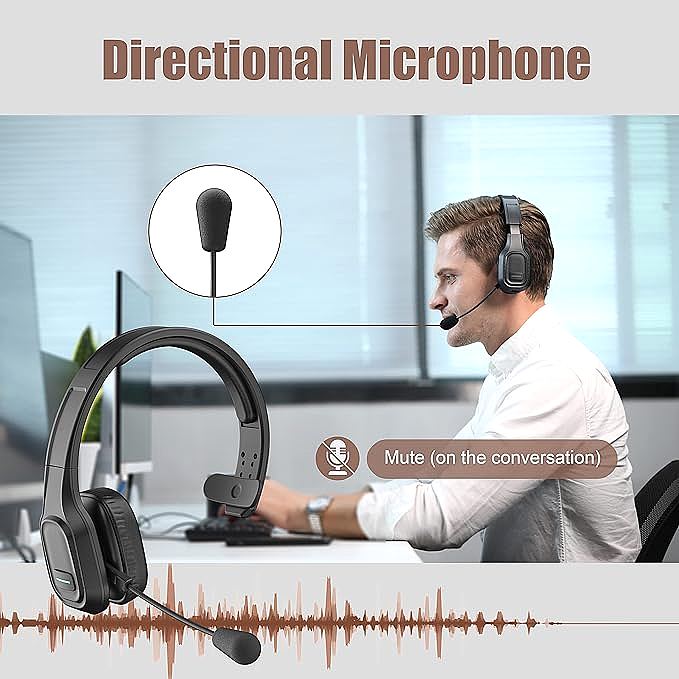
Noise canceling on this class of headset works on proximity. The chipset assumes the loudest, closest signal is the speaker's voice and treats everything else as background to be suppressed. Position defeats the technology when the boom sits too far from the mouth.
Bend the flexible arm so the foam tip rests about one inch from the corner of the mouth, slightly off center. Placing the tip directly in front invites breath noise, which the chipset reads as signal and passes along to the listener. The microphone rotates through 270 degrees, so the same position works whether the headset sits on the left or the right ear.
It helps to understand what the headset is and is not doing. The environmental noise canceling microphone isolates your voice for the person on the far end of the call. It does not silence the room for you. Active noise cancellation, which uses outward facing microphones to generate a canceling wave inside the earcup, is a different technology and this headset does not include it. The single open earcup is deliberate, since it keeps one ear free for traffic and conversation.

Battery, Charging, and the Rules the Manufacturer Sets
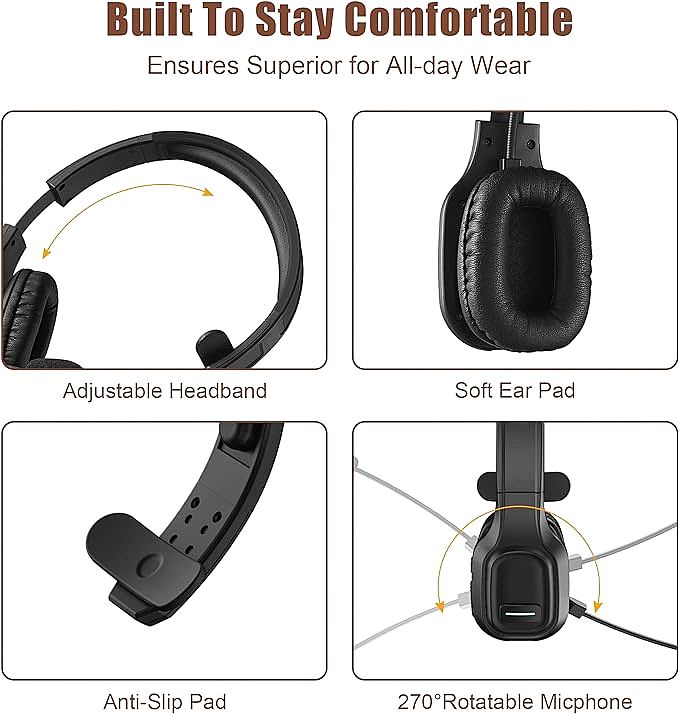
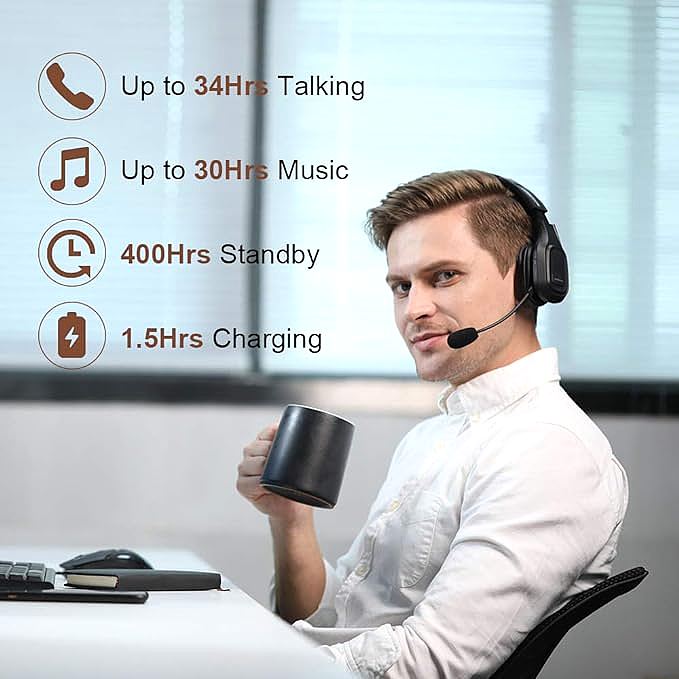
Charging from empty to full takes about 1.5 hours and yields up to 30 hours of talk time, with up to 400 hours of standby. Bluetooth 5.0 handles the radio link and the working range runs to roughly 33 ft in open space, which shrinks indoors once walls intervene. The unit weighs 4.9 oz, light enough that the adjustable headband and protein leather cushion carry it without pressure over a long shift.
COMEXION specifies a 5V charger only. Higher voltage risks damaging the cell, and the warning is worth heeding because the headset charges over USB-C and will accept whatever a fast charger offers.
Charging habits extend the cell more than any setting does. Topping up between shifts beats running the battery flat, and leaving the headset plugged in for days on a high output charger adds heat that the cell does not need. The manufacturer's 5V note exists for that reason.
Two compatibility limits deserve a plain statement. The headset does not work with PS4 or Xbox consoles. A desktop computer without built-in Bluetooth needs either the dongle variant or a separate USB Bluetooth adapter, since the plain version has no wired audio path.
For comparison, rival trucker headsets publish figures this unit does not. The TECKNET TK-HS005 lists dual 40mm drivers and a 400mAh battery rated for 50 hours of work time and 200 hours of standby, while the EKSA truck driver model claims a 99 ft range and up to 57 hours of music playback. COMEXION publishes talk time, standby time and range, but no driver diameter and no battery capacity in milliamp hours. Anyone weighing the BH-M100 against those options should treat the missing numbers as missing rather than assume a value.
Getting the Headset to Behave Predictably
Every problem on this list comes from the same source. Bluetooth separates the voice channel from the music channel, then hands control of each to a different piece of software. Once that split makes sense, the symptoms stop looking random. The light reports which state the radio is in. The mute button only reaches software that listens for it. Two connected devices share one media stream. The microphone only works as well as its position allows.
Treat the pairing hold, the endpoint selection, and the boom placement as three settings worth getting right once. Applied to the COMEXION BH-M100 Trucker Wireless Headset, those three cover nearly every complaint that sends an owner looking for help, and the headset settles into the job it was built for.
COMEXION BH-M100 Trucker Wireless Headset
Related Essays

Best Budget ANC Earbuds: JLab JBuds ANC 3 Guide

Sony WH-CH520 Wireless Headphones: The Science Behind 50 Hours of Sound & Seamless Connectivity

